Dokumentation
Der komplette Leitfaden zu Loxone AI — steuern Sie Ihr Smart Home über Claude und andere KI-Assistenten mithilfe des MCP-Protokolls.
Schnellstart
In 3 Schritten mit Loxone AI starten:
1 Konto erstellen
Registrieren Sie sich auf loxoneai.com per E-Mail, Google oder Apple.
2 Ihre Loxone-Verbindung hinzufügen
Klicken Sie im Dashboard auf „Verbindung hinzufügen“ und geben Sie Folgendes ein:
- Seriennummer: die Seriennummer Ihres Miniservers (z. B.
504F94XXXXXX) — so finden Sie sie - Benutzername: Ihr Loxone-Kontobenutzername
- Passwort: Ihr Loxone-Kontopasswort
Klicken Sie auf „Überprüfen“, um die Verbindung zu testen.
Hinweis: Wenn Sie gerade einen neuen Loxone-Benutzer angelegt haben, prüfen Sie das Passwort zuerst durch Anmeldung in der Loxone App. Nach mehreren Fehlversuchen sperrt der Miniserver diesen Benutzer vorübergehend und Sie müssen einige Minuten warten.
3 KI-Assistenten verbinden
Kopieren Sie im Dashboard die MCP-Konfiguration für Ihre Anwendung:
- Claude Desktop / Cursor / Windsurf: Kopieren Sie das Konfigurations-Snippet und fügen Sie es in die MCP-Einstellungen Ihrer App ein
- Claude.ai (Web): Nutzen Sie den OAuth-Ablauf — klicken Sie im Dashboard auf „Verbinden“ und autorisieren Sie im Browser
Voraussetzungen
- Loxone Miniserver (Gen 1 oder Gen 2) mit Netzwerkzugriff
- Claude Desktop, Claude.ai, Cursor, Windsurf oder ein beliebiger MCP-kompatibler Client
- Netzwerkzugriff zwischen dem Loxone Miniserver und dem Internet, damit der Cloud-Server ihn erreichen kann
Cloud MCP
Der Cloud-MCP-Server läuft auf unserer Infrastruktur unter https://cloud.loxoneai.com/cloud/mcp. Ihre Loxone-Zugangsdaten werden verschlüsselt in unserer Datenbank gespeichert — es ist keine Softwareinstallation auf Ihrem Gerät nötig.
- Funktioniert von überall — kein lokales Netzwerk erforderlich
- Für alle registrierten Nutzer verfügbar
- Unterstützt Claude.ai (Web), Claude Desktop, Cursor, Windsurf und mehr
- Gesamter Datenverkehr verschlüsselt über HTTPS / OAuth 2.0
Authentifizierung
Der Cloud-MCP-Server verwendet OAuth 2.0. Der Autorisierungsserver ist https://loxoneai.com.
- Authorization Code + PKCE — für Claude.ai Web und Apps, die ein Browserfenster öffnen
- Client Credentials — für Headless-Clients (Claude Desktop, Cursor, Windsurf) mit einem Bearer-Token
Ihren Zugriffstoken oder Ihre OAuth-Zugangsdaten finden Sie im Dashboard → Tab „API Keys“.
App-Konfiguration
Konfigurationen für unterstützte Anwendungen:
Claude.ai (web)
Nutzt den OAuth-Authorization-Code-Flow — keine manuelle Konfiguration nötig. Klicken Sie im Dashboard auf Mit Claude.ai verbinden und autorisieren Sie im Browser.
Claude Desktop
Oder manuell konfigurieren — für andere Clients (Cursor, VS Code, Claude Code) ist dies der richtige Weg:
Konfigurationsdatei: ~/Library/Application Support/Claude/claude_desktop_config.json (macOS) oder %APPDATA%\Claude\claude_desktop_config.json (Windows)
{
  "mcpServers": {
    "loxone-cloud": {
      "command": "npx",
      "args": ["-y", "mcp-remote",
        "https://cloud.loxoneai.com/cloud/mcp",
        "--header", "Authorization: Bearer YOUR_ACCESS_TOKEN"]
    }
  }
}mcp-remote, um sich mit entfernten MCP-Servern zu verbinden.Cursor
Konfigurationsdatei: ~/.cursor/mcp.json
{
  "mcpServers": {
    "loxone-cloud": {
      "url": "https://cloud.loxoneai.com/cloud/mcp",
      "headers": {
        "Authorization": "Bearer YOUR_ACCESS_TOKEN"
      }
    }
  }
}
Windsurf
Konfigurationsdatei: ~/.codeium/windsurf/mcp_config.json
{
  "mcpServers": {
    "loxone-cloud": {
      "serverUrl": "https://cloud.loxoneai.com/cloud/mcp",
      "headers": {
        "Authorization": "Bearer YOUR_ACCESS_TOKEN"
      }
    }
  }
}
Continue
Konfigurationsdatei: ~/.continue/config.yaml
mcpServers:
  - name: loxone-cloud
    url: https://cloud.loxoneai.com/cloud/mcp
    requestOptions:
      headers:
        Authorization: "Bearer YOUR_ACCESS_TOKEN"
Cline
{
  "mcpServers": {
    "loxone-cloud": {
      "url": "https://cloud.loxoneai.com/cloud/mcp",
      "headers": {
        "Authorization": "Bearer YOUR_ACCESS_TOKEN"
      }
    }
  }
}
Eigene App / API
Zugriffstoken über OAuth 2.0 Client Credentials abrufen:
curl -X POST https://loxoneai.com/oauth/token \
  -d "grant_type=client_credentials&client_id=YOUR_CLIENT_ID&client_secret=YOUR_SECRET"
Übergeben Sie den Token anschließend als Authorization: Bearer ACCESS_TOKEN an den MCP-Endpunkt.
Loxone Cloud
Sie geben nur die Seriennummer ein — die Loxone-Cloud-Verbindung wird automatisch erstellt:
dns.loxonecloud.com/YOUR_SERIAL_NUMBERRemote Connect (Loxone Cloud) muss am Miniserver aktiviert sein. Die Seriennummer finden Sie in der Loxone App: Menü → ⓘ Info.
So finden Sie Ihre Seriennummer
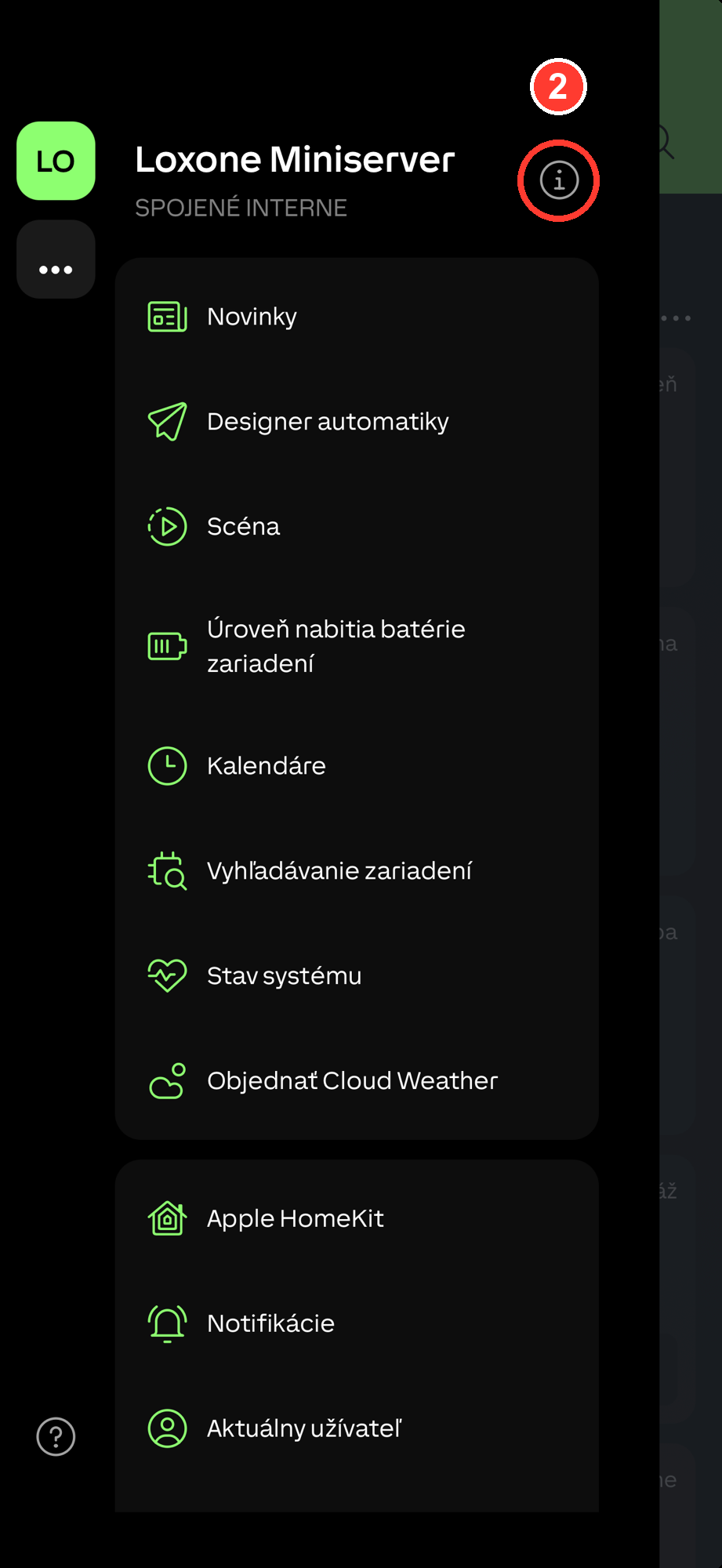
Ihre Seriennummer ist die MAC-Adresse des Miniservers — sie kommt in die Cloud-URL dns.loxonecloud.com/<serial>. Am einfachsten finden Sie sie in der Loxone App:
- Öffnen Sie die Loxone App und tippen Sie oben links auf das Menü (☰).
- Tippen Sie auf das Info-Symbol (ⓘ) neben dem Namen des Miniservers.
- Lesen Sie die Zeile Seriennummer ab — das ist Ihre MAC (12 Zeichen, z. B.
504F94XXXXXX).


Praktische Beispiele
Diese Beispiele zeigen die Kernfunktionen des Loxone AI MCP-Servers. Jedes zeigt den natürlichsprachlichen Prompt an die KI, den ausgeführten MCP-Tool-Aufruf und die erwartete Antwort.
„Schalte das Licht im Wohnzimmer ein“{
"tool": "loxone_light_on",
"arguments": {
"control": "Living Room"
}
}{
"success": true,
"message": "Light turned on: Living Room",
"device": "Living Room",
"action": "on"
}„Wie hoch ist die Temperatur im Schlafzimmer?“{
"tool": "loxone_get_temperature",
"arguments": {
"room": "Bedroom"
}
}{
"room": "Bedroom",
"temperature_c": 21.4,
"unit": "°C",
"sensor": "Temperature Bedroom"
}„Schließe die Rollläden im Wohnzimmer“{
"tool": "loxone_blind_down",
"arguments": {
"control": "Living Room"
}
}{
"success": true,
"message": "Blind moved down: Living Room",
"device": "Living Room",
"action": "down"
}„Zeig mir alle Geräte in meinem Zuhause“{
"tool": "loxone_list_devices",
"arguments": {}
}{
"lights": [
{ "name": "Living Room", "room": "Living Room", "type": "LightControllerV2" },
{ "name": "Kitchen", "room": "Kitchen", "type": "Dimmer" }
],
"blinds": [
{ "name": "Blind Living Room", "room": "Living Room", "type": "Jalousie" }
],
"gates": [
{ "name": "Garage Door", "room": "Garage", "type": "Gate" }
],
"thermostats": [
{ "name": "Temperature Bedroom", "room": "Bedroom", "type": "InfoOnlyAnalog" }
]
}„Dimme das Licht im Schlafzimmer auf 30%“{
"tool": "loxone_dimmer",
"arguments": {
"control": "Bedroom",
"value": 30
}
}{
"success": true,
"message": "Dimmer set to 30%: Bedroom",
"device": "Bedroom",
"value": 30
}Sprachbefehle
Loxone AI versteht natürliche Sprache. Hier sind Beispiel-Prompts, die Sie verwenden können:
Licht
„Schalte das Licht im Wohnzimmer ein“
„Schalte alle Lichter aus“
„Dimme das Licht im Schlafzimmer auf 30%“
„Stelle das Küchenlicht auf 80%“
„Welche Lichter sind gerade eingeschaltet?“
Rollläden & Jalousien
„Schließe die Rollläden im Wohnzimmer“
„Öffne alle Rollläden“
„Stelle die Rollläden auf 50%“
„Schließe die Jalousien im Schlafzimmer“
Temperatur
„Wie hoch ist die Temperatur im Wohnzimmer?“
„Zeig mir die Temperaturen in allen Räumen“
„Welcher Raum ist am wärmsten?“
Tore & Garage
„Öffne das Garagentor“
„Schließe das Einfahrtstor“
Geräte
„Zeig alle Geräte“
„Welche Geräte gibt es in der Küche?“
„Liste alle Lichter auf“
Unterstützte Geräte
| Typ | Loxone-Typen | Aktionen |
|---|---|---|
| 💡 Licht | LightController, LightControllerV2, Dimmer, Switch |
Ein, aus, Dimmen (0–100%) |
| 🪧 Rollläden | Jalousie, Blind |
Auf, ab, Position (0–100%) |
| 🚗 Tore | Gate |
Öffnen, schließen |
| 🌡️ Temperatur | InfoOnlyAnalog (Name enthält „temperature“) |
Aktuellen Wert auslesen |
| 🏠 Raumübersicht | Alle Typen | Licht, Rollläden, Temperatur, Anwesenheit |
| 📊 Anwesenheit | PresenceDetector, Motion |
Belegungsstatus auslesen |
MCP-Tools-Referenz
Der Loxone AI MCP-Server stellt 32 Tools bereit. Wichtige Tools:
loxone_list_devices
Gibt alle Geräte gruppiert nach Kategorie zurück (Licht, Rollläden, Tore, Thermostate, Anwesenheit, Sensoren).
loxone_light_on / loxone_light_off
Schaltet ein Licht oder einen Raum ein/aus. Parameter: control — Geräte- oder Raumname.
loxone_dimmer
Stellt die Lichthelligkeit ein. Parameter: control (Gerät/Raum), value (0–100).
loxone_blind_up / loxone_blind_down
Öffnet oder schließt einen Rollladen vollständig. Parameter: control — Geräte- oder Raumname.
loxone_blind_position
Setzt einen Rollladen auf eine bestimmte Position. Parameter: control, position (0=offen, 100=geschlossen).
loxone_get_temperature
Liest die aktuelle Temperatur eines Raumsensors aus. Parameter: room.
loxone_get_room_climate
Vollständige Klimaübersicht für einen Raum: Temperatur, Luftfeuchtigkeit, Zieltemperatur, Thermostatmodus.
loxone_get_room_summary
Vollständige Raumübersicht: alle Lichter, Rollläden, Temperatur, Luftfeuchtigkeit, Anwesenheit.
loxone_get_all_lights_status
Ein-/Aus-/Dimmerstatus aller Lichter im gesamten Zuhause, gruppiert nach Raum.
loxone_gate_open / loxone_gate_close
Öffnet oder schließt ein Tor oder Garagentor. Parameter: control.
loxone_get_weather
Außenwetter: Temperatur, Windgeschwindigkeit, Regen, Helligkeit, Sturmwarnungen.
loxone_get_energy
Daten zu Energieverbrauch und -erzeugung (Netz, Solar-PV, Batterie).
readOnlyHint / destructiveHint) und für Menschen lesbare Titel für korrektes LLM-Verhalten.Fehlerbehebung
Claude sieht die Loxone-Tools nicht
- Starten Sie Claude Desktop vollständig neu (beenden und erneut öffnen — nicht nur das Fenster schließen)
- Überprüfen Sie, ob der MCP-Server läuft
- Prüfen Sie die Konfigurationsdatei unter
~/Library/Application Support/Claude/claude_desktop_config.json(macOS) oder%APPDATA%\Claude\claude_desktop_config.json(Windows)
Keine Verbindung zu Loxone möglich
- Überprüfen Sie, ob Remote Connect (Loxone Cloud) am Miniserver aktiviert ist — der Cloud-Server verbindet sich über Loxone Cloud
- Prüfen Sie die Seriennummer in der Loxone App (Menü → ⓘ Info)
- Überprüfen Sie die Zugangsdaten, indem Sie sich direkt in der Weboberfläche des Miniservers anmelden
- Bei Verwendung der Loxone Cloud: Überprüfen Sie die MAC-Adresse noch einmal genau
Geräte werden nicht gefunden
- Der MCP-Server cacht die Geräteliste — starten Sie den Server neu, nachdem Sie neue Geräte in Loxone Config hinzugefügt haben
- Geräte müssen in Loxone Config aktiv sein
- Temperatursensoren müssen „temperature“ oder „teplota“ im Namen enthalten
Cloud-Zugriff funktioniert nicht
- Prüfen Sie, ob Ihr Zugriffstoken gültig ist — kopieren Sie bei Bedarf einen neuen aus dem Dashboard
- Überprüfen Sie Ihre Internetverbindung
- Prüfen Sie den Serverstatus unter
https://cloud.loxoneai.com/health