Documentation
Guide complet de Loxone AI — pilotez votre maison connectée via Claude et d'autres assistants IA grâce au protocole MCP.
Démarrage rapide
Démarrez avec Loxone AI en 3 étapes :
1 Créez un compte
Inscrivez-vous sur loxoneai.com via e-mail, Google ou Apple.
2 Ajoutez votre connexion Loxone
Dans le Dashboard, cliquez sur « Ajouter une connexion » et saisissez :
- Numéro de série : le numéro de série de votre Miniserver (par ex.
504F94XXXXXX) — comment le trouver - Nom d'utilisateur : le nom d'utilisateur de votre compte Loxone
- Mot de passe : le mot de passe de votre compte Loxone
Cliquez sur « Vérifier » pour tester la connexion.
Attention : si vous venez de créer un utilisateur Loxone, vérifiez le mot de passe en vous connectant d'abord dans l'app Loxone. Après plusieurs échecs, le Miniserver bloque temporairement cet utilisateur et il faut attendre quelques minutes.
3 Connectez votre assistant IA
Dans le Dashboard, copiez la configuration MCP correspondant à votre application :
- Claude Desktop / Cursor / Windsurf : copiez l'extrait de configuration et collez-le dans les paramètres MCP de votre application
- Claude.ai (web) : utilisez le flux OAuth — cliquez sur « Connecter » dans le Dashboard et autorisez l'accès dans votre navigateur
Prérequis
- Loxone Miniserver (Gen 1 ou Gen 2) accessible sur le réseau
- Claude Desktop, Claude.ai, Cursor, Windsurf, ou tout client compatible MCP
- Accès réseau entre le Miniserver Loxone et internet, afin que le serveur cloud puisse l'atteindre
Cloud MCP
Le serveur Cloud MCP fonctionne sur notre infrastructure à l'adresse https://cloud.loxoneai.com/cloud/mcp. Vos identifiants Loxone sont stockés chiffrés dans notre base de données — aucune installation logicielle n'est nécessaire sur votre machine.
- Fonctionne depuis n'importe où — aucun réseau local requis
- Disponible pour tous les utilisateurs inscrits
- Compatible avec Claude.ai (web), Claude Desktop, Cursor, Windsurf et bien d'autres
- Tout le trafic est chiffré via HTTPS / OAuth 2.0
Authentification
Le serveur Cloud MCP utilise OAuth 2.0. Le serveur d'autorisation est https://loxoneai.com.
- Authorization Code + PKCE — pour Claude.ai web et les applications qui ouvrent une fenêtre de navigateur
- Client Credentials — pour les clients sans interface graphique (Claude Desktop, Cursor, Windsurf) utilisant un token Bearer
Récupérez votre token d'accès ou vos identifiants OAuth depuis l'onglet API Keys du Dashboard.
Configuration de l'application
Configurations pour les applications prises en charge :
Claude.ai (web)
Utilise le flux OAuth Authorization Code — aucune configuration manuelle nécessaire. Dans le Dashboard, cliquez sur Se connecter à Claude.ai et autorisez l'accès dans votre navigateur.
Claude Desktop
Ou configurez manuellement — pour les autres clients (Cursor, VS Code, Claude Code), c'est la méthode à privilégier :
Fichier de configuration : ~/Library/Application Support/Claude/claude_desktop_config.json (macOS) ou %APPDATA%\Claude\claude_desktop_config.json (Windows)
{
  "mcpServers": {
    "loxone-cloud": {
      "command": "npx",
      "args": ["-y", "mcp-remote",
        "https://cloud.loxoneai.com/cloud/mcp",
        "--header", "Authorization: Bearer YOUR_ACCESS_TOKEN"]
    }
  }
}mcp-remote pour se connecter aux serveurs MCP distants.Cursor
Fichier de configuration : ~/.cursor/mcp.json
{
  "mcpServers": {
    "loxone-cloud": {
      "url": "https://cloud.loxoneai.com/cloud/mcp",
      "headers": {
        "Authorization": "Bearer YOUR_ACCESS_TOKEN"
      }
    }
  }
}
Windsurf
Fichier de configuration : ~/.codeium/windsurf/mcp_config.json
{
  "mcpServers": {
    "loxone-cloud": {
      "serverUrl": "https://cloud.loxoneai.com/cloud/mcp",
      "headers": {
        "Authorization": "Bearer YOUR_ACCESS_TOKEN"
      }
    }
  }
}
Continue
Fichier de configuration : ~/.continue/config.yaml
mcpServers:
  - name: loxone-cloud
    url: https://cloud.loxoneai.com/cloud/mcp
    requestOptions:
      headers:
        Authorization: "Bearer YOUR_ACCESS_TOKEN"
Cline
{
  "mcpServers": {
    "loxone-cloud": {
      "url": "https://cloud.loxoneai.com/cloud/mcp",
      "headers": {
        "Authorization": "Bearer YOUR_ACCESS_TOKEN"
      }
    }
  }
}
Application personnalisée / API
Obtenez un token d'accès via OAuth 2.0 Client Credentials :
curl -X POST https://loxoneai.com/oauth/token \
  -d "grant_type=client_credentials&client_id=YOUR_CLIENT_ID&client_secret=YOUR_SECRET"
Transmettez ensuite le token via Authorization: Bearer ACCESS_TOKEN au point de terminaison MCP.
Loxone Cloud
Vous n'entrez que le numéro de série — la connexion Loxone Cloud est créée automatiquement :
dns.loxonecloud.com/YOUR_SERIAL_NUMBERRemote Connect (Loxone Cloud) doit être activé sur le Miniserver. Trouvez le numéro de série dans l'app Loxone : menu → ⓘ info.
Comment trouver votre numéro de série
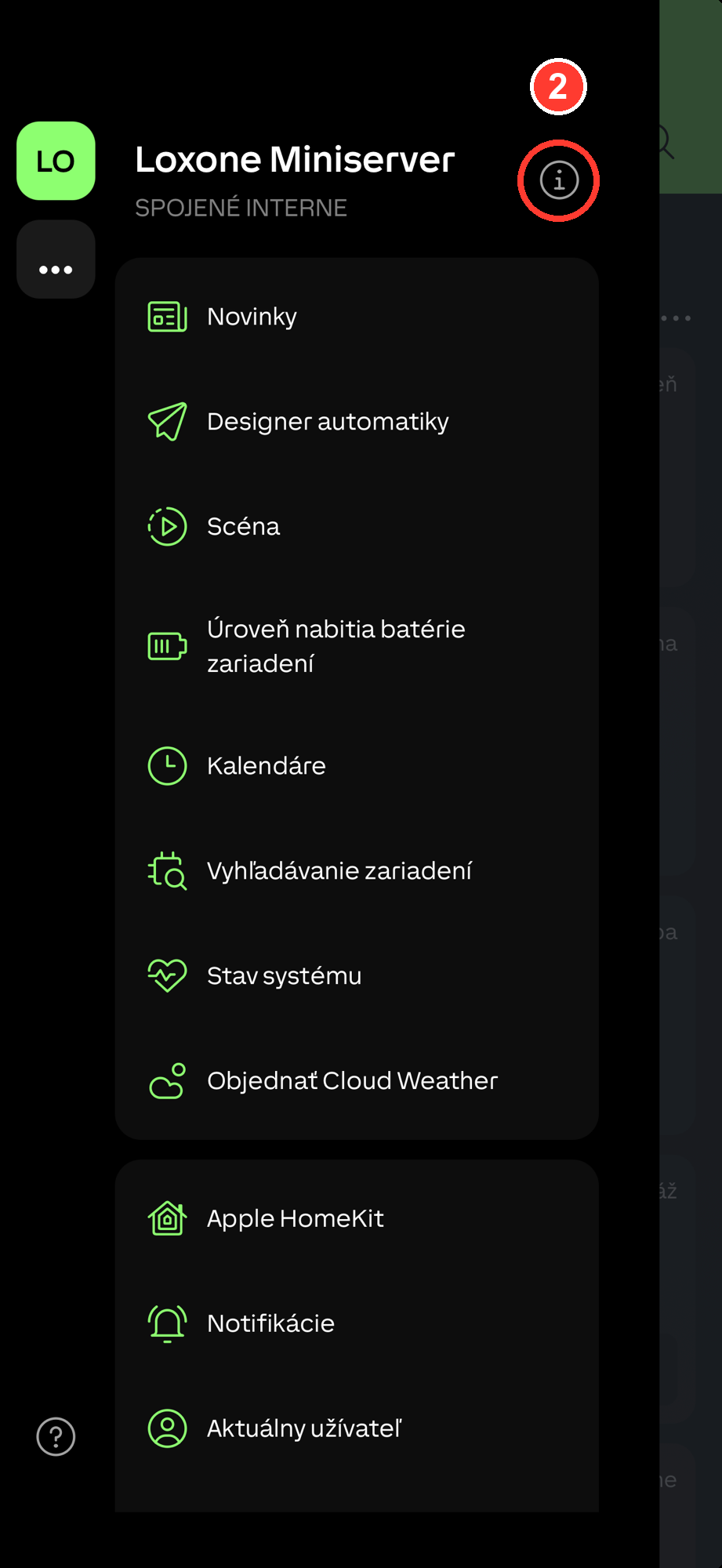
Votre numéro de série est l'adresse MAC du Miniserver — il s'utilise dans l'URL Cloud dns.loxonecloud.com/<serial>. Le plus simple est de le trouver dans l'application Loxone :
- Ouvrez l'application Loxone et touchez le menu (☰) en haut à gauche.
- Touchez l'icône d'information (ⓘ) à côté du nom du Miniserver.
- Lisez la ligne Numéro de série — c’est votre MAC (12 caractères, ex.
504F94XXXXXX).


Exemples concrets
Ces exemples illustrent les fonctionnalités principales du serveur MCP Loxone AI. Chacun présente la requête en langage naturel envoyée à l'IA, l'appel d'outil MCP effectué et la réponse attendue.
"Allume les lumières du salon"{
"tool": "loxone_light_on",
"arguments": {
"control": "Living Room"
}
}{
"success": true,
"message": "Light turned on: Living Room",
"device": "Living Room",
"action": "on"
}"Quelle est la température dans la chambre ?"{
"tool": "loxone_get_temperature",
"arguments": {
"room": "Bedroom"
}
}{
"room": "Bedroom",
"temperature_c": 21.4,
"unit": "°C",
"sensor": "Temperature Bedroom"
}"Ferme les volets du salon"{
"tool": "loxone_blind_down",
"arguments": {
"control": "Living Room"
}
}{
"success": true,
"message": "Blind moved down: Living Room",
"device": "Living Room",
"action": "down"
}"Montre-moi tous les appareils de ma maison"{
"tool": "loxone_list_devices",
"arguments": {}
}{
"lights": [
{ "name": "Living Room", "room": "Living Room", "type": "LightControllerV2" },
{ "name": "Kitchen", "room": "Kitchen", "type": "Dimmer" }
],
"blinds": [
{ "name": "Blind Living Room", "room": "Living Room", "type": "Jalousie" }
],
"gates": [
{ "name": "Garage Door", "room": "Garage", "type": "Gate" }
],
"thermostats": [
{ "name": "Temperature Bedroom", "room": "Bedroom", "type": "InfoOnlyAnalog" }
]
}"Baisse les lumières de la chambre à 30 %"{
"tool": "loxone_dimmer",
"arguments": {
"control": "Bedroom",
"value": 30
}
}{
"success": true,
"message": "Dimmer set to 30%: Bedroom",
"device": "Bedroom",
"value": 30
}Commandes en langage naturel
Loxone AI comprend le langage naturel. Voici des exemples de requêtes que vous pouvez utiliser :
Lumières
"Allume les lumières du salon"
"Éteins toutes les lumières"
"Baisse les lumières de la chambre à 30 %"
"Règle la lumière de la cuisine à 80 %"
"Quelles lumières sont actuellement allumées ?"
Volets et stores
"Ferme les volets du salon"
"Ouvre tous les volets"
"Règle les volets à 50 %"
"Ferme les stores de la chambre"
Température
"Quelle est la température dans le salon ?"
"Montre les températures de toutes les pièces"
"Quelle est la pièce la plus chaude ?"
Portails et garage
"Ouvre la porte du garage"
"Ferme le portail d'entrée"
Appareils
"Montre tous les appareils"
"Quels appareils y a-t-il dans la cuisine ?"
"Liste toutes les lumières"
Appareils pris en charge
| Type | Types Loxone | Actions |
|---|---|---|
| 💡 Lumières | LightController, LightControllerV2, Dimmer, Switch |
Allumage, extinction, variation (0–100 %) |
| 🪧 Volets | Jalousie, Blind |
Montée, descente, position (0–100 %) |
| 🚗 Portails | Gate |
Ouverture, fermeture |
| 🌡️ Température | InfoOnlyAnalog (le nom contient « temperature ») |
Lire la valeur actuelle |
| 🏠 Résumé de la pièce | Tous les types | Lumières, volets, température, présence |
| 📊 Présence | PresenceDetector, Motion |
Lire l'état d'occupation |
Référence des outils MCP
Le serveur MCP Loxone AI expose 32 outils. Outils principaux :
loxone_list_devices
Renvoie tous les appareils regroupés par catégorie (lumières, volets, portails, thermostats, présence, capteurs).
loxone_light_on / loxone_light_off
Allume ou éteint une lumière ou une pièce. Paramètre : control — nom de l'appareil ou de la pièce.
loxone_dimmer
Règle la luminosité d'une lumière. Paramètres : control (appareil/pièce), value (0–100).
loxone_blind_up / loxone_blind_down
Ouvre ou ferme complètement un volet. Paramètre : control — nom de l'appareil ou de la pièce.
loxone_blind_position
Règle un volet à une position précise. Paramètres : control, position (0=ouvert, 100=fermé).
loxone_get_temperature
Lit la température actuelle depuis un capteur de pièce. Paramètre : room.
loxone_get_room_climate
Obtient un aperçu climatique complet d'une pièce : température, humidité, température cible, mode du thermostat.
loxone_get_room_summary
Aperçu complet d'une pièce : toutes les lumières, volets, température, humidité, présence.
loxone_get_all_lights_status
État on/off/variateur de toutes les lumières de la maison, regroupées par pièce.
loxone_gate_open / loxone_gate_close
Ouvre ou ferme un portail ou une porte de garage. Paramètre : control.
loxone_get_weather
Météo extérieure : température, vitesse du vent, pluie, luminosité, alertes tempête.
loxone_get_energy
Données de consommation et de production d'énergie (réseau, photovoltaïque, batterie).
readOnlyHint / destructiveHint) et des titres lisibles par un humain pour garantir un comportement correct du LLM.Dépannage
Claude ne voit pas les outils Loxone
- Redémarrez complètement Claude Desktop (quittez puis rouvrez — pas seulement fermer la fenêtre)
- Vérifiez que le serveur MCP est en cours d'exécution
- Vérifiez le fichier de configuration à l'emplacement
~/Library/Application Support/Claude/claude_desktop_config.json(macOS) ou%APPDATA%\Claude\claude_desktop_config.json(Windows)
Impossible de se connecter à Loxone
- Vérifiez que Remote Connect (Loxone Cloud) est activé sur le Miniserver — le serveur cloud se connecte via Loxone Cloud
- Vérifiez le numéro de série dans l'app Loxone (menu → ⓘ info)
- Vérifiez les identifiants en vous connectant directement à l'interface web du Miniserver
- Si vous utilisez Loxone Cloud, vérifiez bien l'adresse MAC
Appareils introuvables
- Le serveur MCP met en cache la liste des appareils — redémarrez le serveur après avoir ajouté de nouveaux appareils dans Loxone Config
- Les appareils doivent être actifs dans Loxone Config
- Les capteurs de température doivent inclure « temperature » ou « teplota » dans leur nom
L'accès Cloud ne fonctionne pas
- Vérifiez que votre token d'accès est valide — copiez-en un nouveau depuis le Dashboard
- Vérifiez votre connexion internet
- Vérifiez l'état du serveur à l'adresse
https://cloud.loxoneai.com/health